

Some weeks ago, I did a general presentation about Windows Server 2016 and the new Container feature (here). Today, I will go through the installation and utilization of Windows Containers.
I will use a Virtual Machine, under Hyper-V, during this blog.
First of all, I have to set the environment to be able to use Windows Containers as it requires the Container OS Base Images. Microsoft has prepared a script in order to configure a system as a Windows Container Host. I will show you this first step.
To download the script, open a PowerShell screen as Administrator and execute this command:
wget -uri https://aka.ms/tp4/Install-ContainerHost -OutFile C:\Install-ContainerHost.ps1
Once the script is download, I will have to execute it with the -SkipDocker parameter to skip Docker installation. Indeed, my intention is to focus only on the Windows Container topic in this blog post:
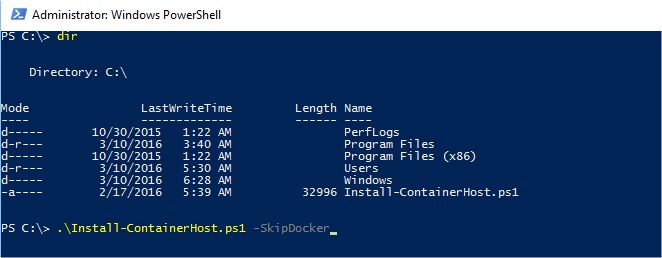
The script will perform the following tasks:
- Check if the Container feature is already enabled and if not enable it
- Enable Container networking
- Create Container switch with NAT
- Creating NAT for IP Address 172.16.0.0/12
- Downloading OS Container Image (WindowsServerCore)
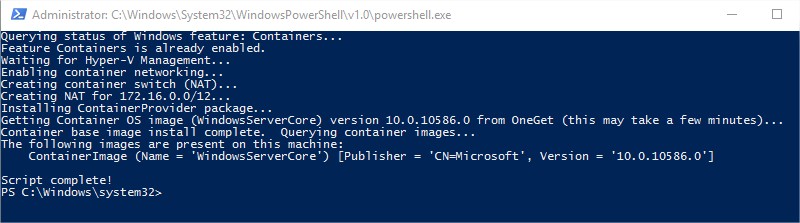
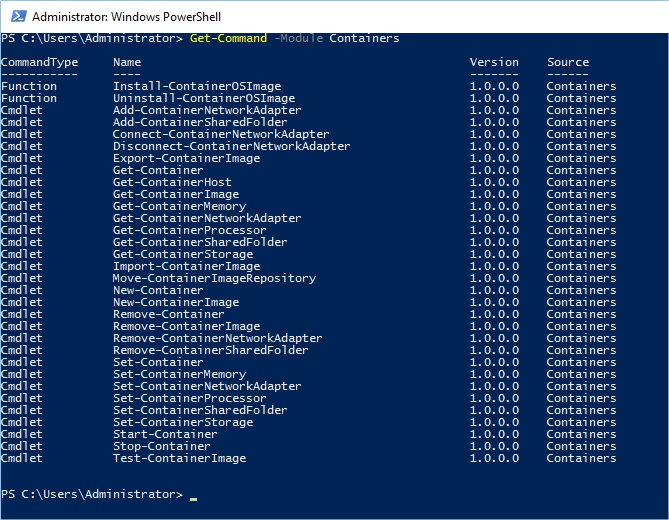
The environment is now configured and I will check all the cmdlets available for Windows Containers:
Let’s check if I have a Container with Get-Container or a Container Image with Get-ContainerImage:
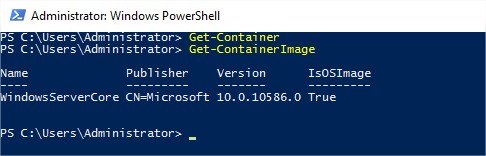
I don’t have any Containers for the moment but we may notice an OS Container Image named WindowsServerCore published by Microsoft downloaded during the first step. I will use it to create a Container named Test and then connect it to my Virtual Switch:
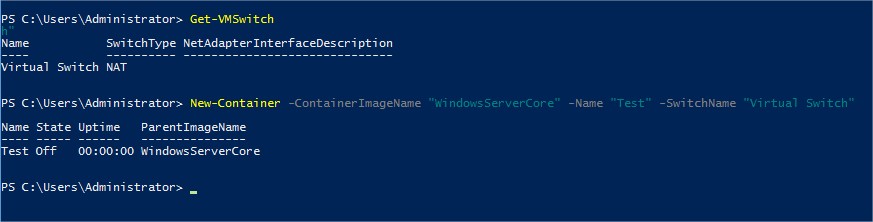
My new Container named Test has been created and is not running for the moment. I can see the related parent image WindowsServerCore.
I will start it and create an interactive session with it to be able to check its configuration and manage it:
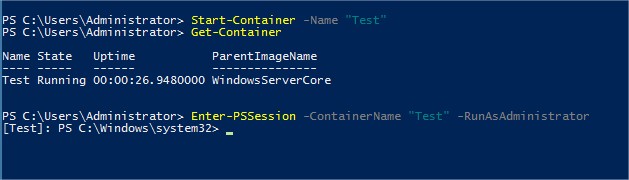
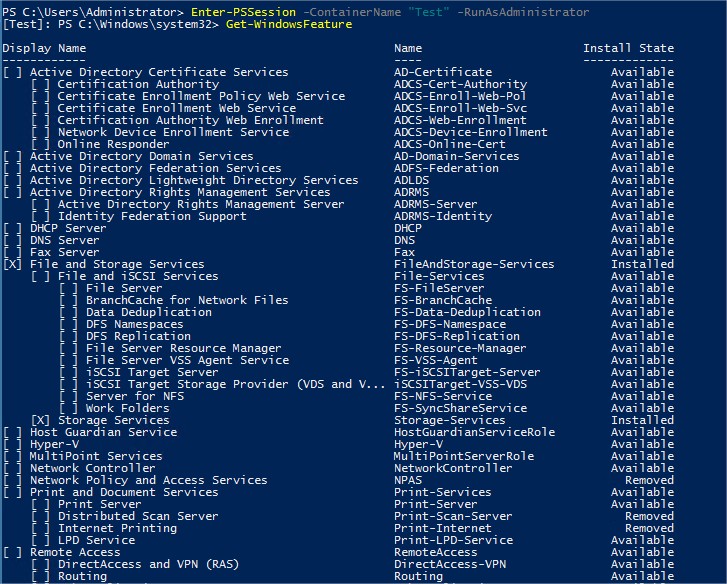
The prompt name indicates that I am now located in my container Test. I can now execute some PowerShell cmdlets as Get-WindowsFeature to have a look at the Windows Features installed on my Container:
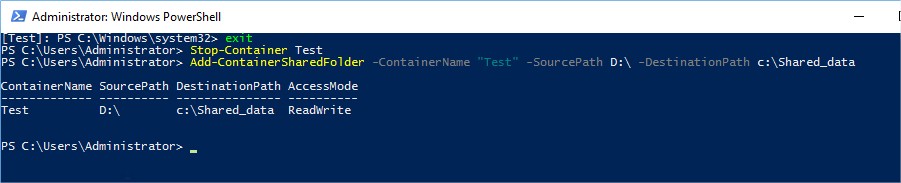
I need to install .NET 3.5 Framework in my Container Test and it requires the Windows Server ISO. For that, I have to map a Windows Server ISO file to my VM and create a shared folder accessible from my Container via the cmdlet Add-ContainerSharedFolder. So I have to exit from my interactive session and to stop my Container as well:
Then I will restart my Container, enter in an interactive session and finally install the .NET 3.5 feature by indicating where to find my source:
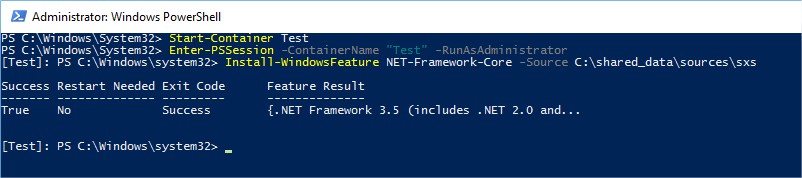
Why do you think I installed the .NET 3.5 Framework? Don’t forget that I am a SQL Server DBA… So I will try to install a SQL Server instance on my Container 😉
For that, I will eject the Windows Server ISO mounted in my VM and insert the SQL Server 2014 ISO.
From my Container, I will install a default SQL Server instance from a command line as we may do it on a Server Core operating system:
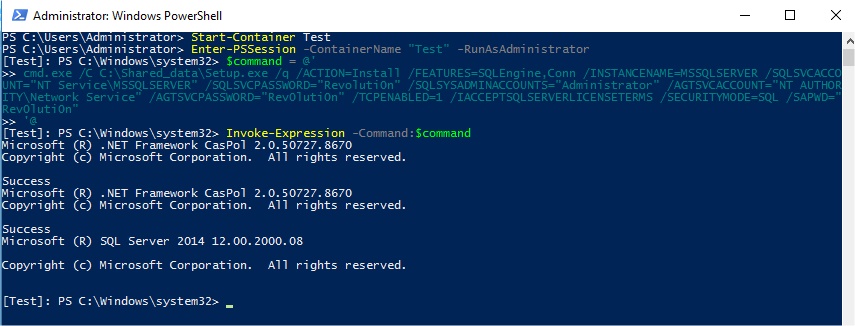
The installation succeeds. Let’s try to query my new SQL Server instance. I will first check if the SQL Server service is running in my Container and accessible from my host:
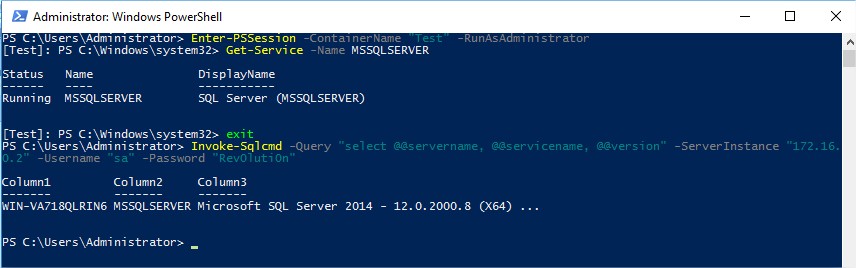
Everything seems to work properly from my host. I will check if I can manage the instance installed on my Container via Management Studio as we could do for a classic SQL Server instance installed on a Windows Server Core:
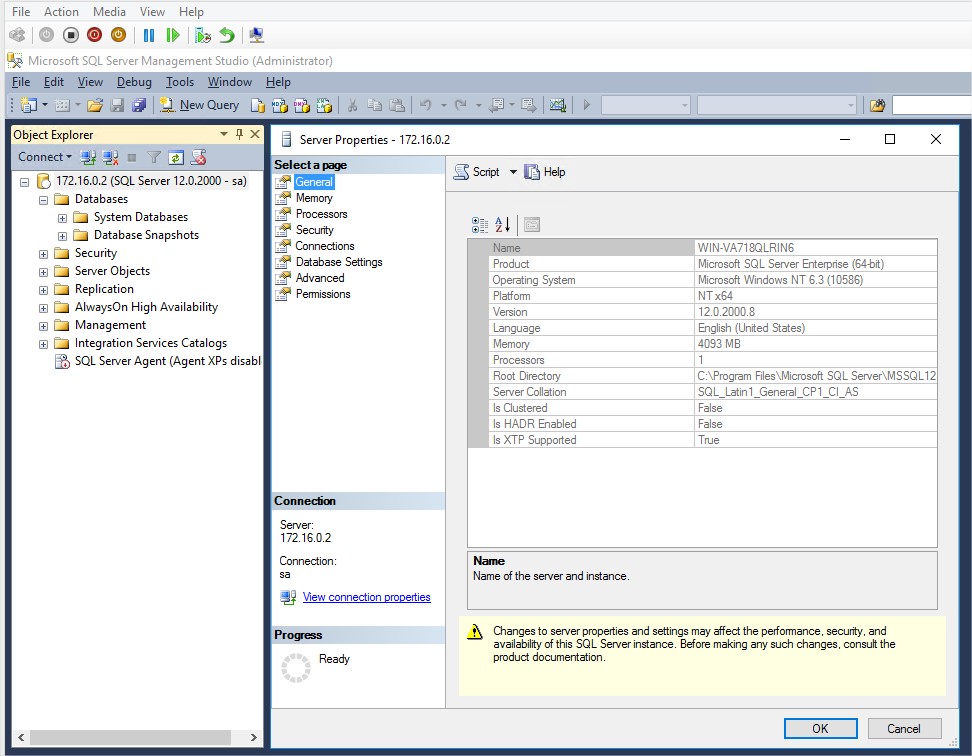
I am able to access to my SQL Server instance and I am able to manage it as usual.
This new Windows Containers feature is working quite well for a preview and provide to DBAs some new capabilities about SQL Server deployment. In a future blog, I will show you how we can export and import a Container from a Virtual Machine to another one or to the cloud.